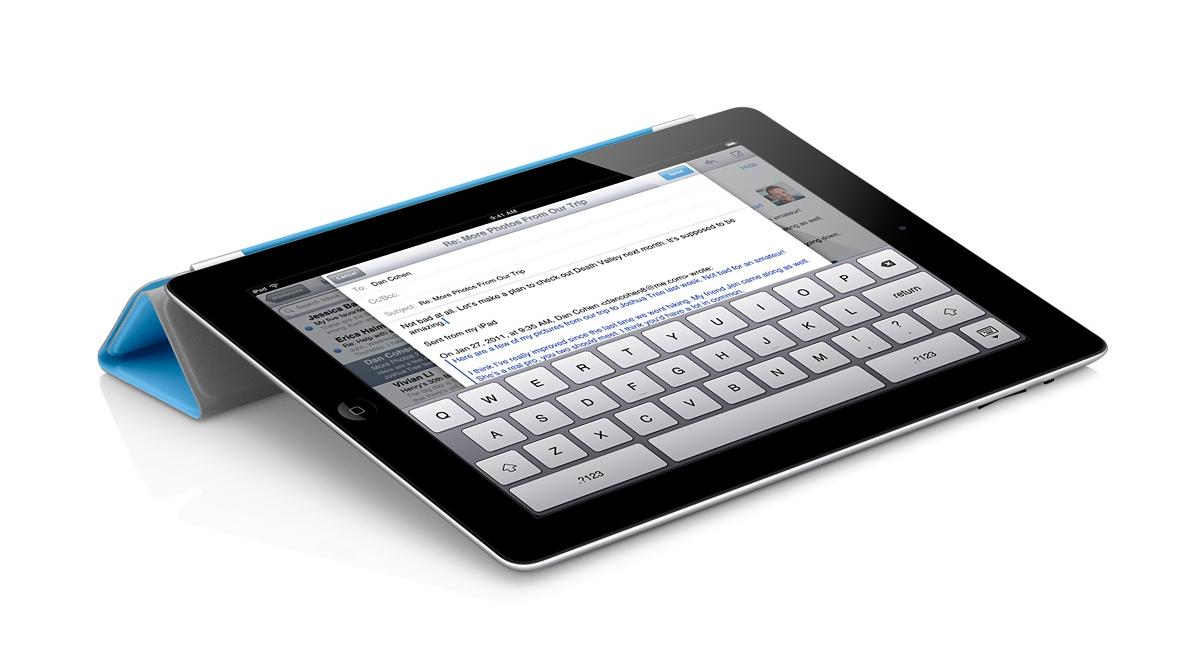
Total confession to make – I love my iPad. So when I was approached by a representative of North Park’s Academic Technology Committee about the possibility of doing a demonstration about favorite productivity apps, I was thrilled. Thought this is an extremely tentative invitation, I’ve been working with electronic resource usage statistics all day and feel like this would be a nice break!
Rather than focus on apps and what they can do – I’m going to try and focus on the things I want to do and how apps fit into that picture.
Taking Notes at a Conference (or in the Archives)
 This won’t come as a huge surprise or particularly innovative, but I love using Evernote when I’m at a conference or meeting. Evernote is the free app that beautifully syncs across devices. In conjunction with my trusty apple keyboard, this makes a great combination for jotting notes on the fly. The basic unit of evernote is the “note” which can be sorted into different notebooks or tagged with different tags. Evernote also adds data about when and where the note was created so that you can view your notes in both time and space.
One great (and overlooked) feature of the iPad is the camera – Evernote’s app takes this in consideration and has really positively effected my conference and meeting workflows. So far, I’ve taken pictures of powerpoint presentations, displays from poster sessions, business cards, handouts, and agendas so keep all that information in one place. A really great thing about Evernote is that it performs Optical Character Recognition on your photographs so that all text – both text you have typed and text that you captured with the camera – is searchable.
Evernote also proved to be a great app when it comes to archival research. In additional to recording metadata, I was able to quickly snap pictures of things like title pages, long quotes, or other things to jog my memory later on. This is certainly not a replacement for traditional methods of research or recording information, but it was much easier and more efficient than a pencil and paper approach.
Professional and Scholarly Reading
Zotero isn’t an iPad app per se, but it has been the tool that has most revolutionized my professional and scholarly reading. Zotero is a bibliographic management tool – and that is much much cooler than it sounds. Here is a good video demostration care of a librarian at Wake Forest University.
[youtube id=”7FOu94Ah85Y” align=”center”]
I’m actually somewhat surprised I haven’t written more about Zotero here (given how much I like it) and could easily dedicate a whole post to it. However, the app that has really changed my workflow is pairing Zotero with something called Papership. Papership is a app that sync with Zotero (or Mendeley, if that’s more your style) and allows you to annotate and sort PDFs from a iPad. They too have a cool video.
[vimeo id=”65134134″ align=”center”]
That combination has been dynamite for me. I can find items when I’m researching a topic or browsing blogs or twitter feeds, add them to Zotero with one click, and then read and sort them when I have time.
Time and Task Management
I’m trying out Trello – a time and task management app recommended by a presenter at #ILEADUSA that I’ve been interested in exploring.
This might be boring, but I’ve found that the standard Apple calendar and task apps work quite well for me here. Both sync nicely with my North Park account and I’m very happy with the functionality they provide. I’ve tried other task management apps…but they all felt like something extra I had to maintain. I now use my standard calendar and outlook tasks at a high level and am quite happy with those results.
Technologically “cool” or “advanced”? No. Effective for me? Absolutely. A nice reminder that it’s about the user – not the technology.
Other “Essential” Apps
iAnnotate – I actually like this interface slightly more than Papership, but Papership fits in better with my workflow so I find myself using this less and less. However, if I were dealing with PDFs from other sources – say grading student papers – I would use this app all the time.
Dropbox – I use Dropbox daily – to the point where I don’t even think about it anymore. Talk to me later if you are not already on using it – it will change your file management habits.
Social Media Apps – Facebook, Tweetbot, Instagram, and Goodreads are my “essential” iPad apps for social media.
In Conclusion
I’ll likely return to this and edit it more in the future. I would describe myself as a competent user of technology that is focused on using technology to improve my daily life and workflows. I really don’t believe in technology for technology sake and will only stick to workflows and rhythms that provide a clear benefit.